

Migrating from Jekyll to Hugo
Contents
Project Profile#
- Difficulty: Medium (3/5)
- Cost: €0
- Time: ~20h
In this project, I describe my migration from Jekyll using the Minimal Mistakes theme to Hugo, utilizing a heavily modified Terminal theme.
Why switch at all?#
For quite some time, I hadn’t been fully satisfied with building my website using Jekyll. The trigger for the switch was a day when I suddenly couldn’t build the site locally due to a compatibility issue in Ruby. Standard commands like bundle update --conservative or bundle install didn’t help. Even manually installing the problematic packages using commands like gem install commonmarker-0.23.12 or gem install posix-spawn -v 0.3.15 -- --with-cflags="-Wno-incompatible-function-pointer-types" failed to resolve the problem.
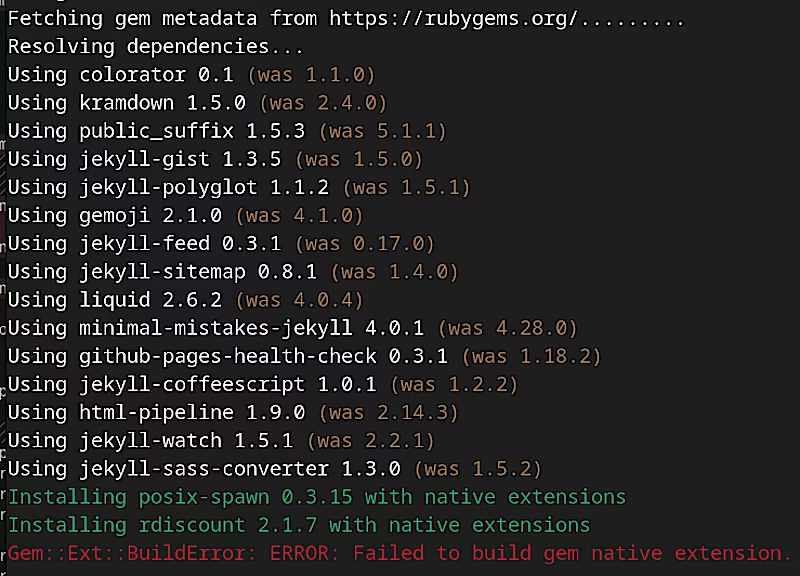
Updating Ruby and Jekyll themselves didn’t work either. Besides, build times with Jekyll had become quite long. Since moving the site from GitHub Pages to my own server, I am no longer tied to Jekyll, making a switch more attractive.
This no-build-locally problem was just the final nudge that made me begin this laborious task. I hate it when technology doesn’t do what I want - even though I admit that often times, I am the root cause for that myself.
Further difficulties with Jekyll#
- CI/CD: My deployment pipeline had failed months ago due to similar errors, forcing me to revert to an older version of Jekyll. This increases technical debt and the attack surface of my GitHub Actions. I would have to look for a well-maintained container solution from another provider. Searching for and setting one up would require additional time.
- RSS feed: I wanted to provide an RSS feed for my website. However, my experiments with Jekyll showed that only “posts” were included, not “announcements.” I wanted to fix this.
- Image formats: Jekyll normally generates cover images (thumbnails) for posts within the RSS feed. Unfortunately, this stopped working after I switched from
.jpgto the more space-efficient.avifformat. Despite several attempts, I couldn’t get a solution approved through the pull request review process. - Icons: The theme I was using relies on Font Awesome to display icons and is quite large overall for a static website. Since I didn’t want to load assets from external sources, I stored the library locally. My plan was to select only the icons I actually needed and delete the rest. With the switch to Hugo, this is no longer necessary.
Opportunities#
I expect Hugo to deliver faster build times, a simplified CI/CD process (without the need to install Bundler, Ruby, etc.), and a resolution to the difficulties described above. Hugo’s approach to dependency and package management differs fundamentally from Jekyll’s: additional content is integrated via Git Submodules, and dependency management relies on Go modules rather than a Gemfile.
The migration tool#
The folder structures for content differ significantly between Jekyll and Hugo. I am therefore using an import tool included with Hugo, which correctly imports at least the articles located under /posts. However, specific content such as overview pages (/tags, /pages/error, /pages/legal), and pages hosting projects and announcements (/_announcements, /_projects), will not be migrated automatically and must be copied and modified manually.
Adjusting Front Matter#
Many of the customizations I implemented in Jekyll either do not work correctly in Hugo or cause the build process to fail. Consequently, the front matter of every Markdown file must be adjusted and, in some cases, cleaned up.
---
# Alt: So kann die Front matter einer Übersichtsseite in Jekyll aussehen
lang: de
title: Beitragsarchiv
subtitle: Diese Sammlung enthält alle meine Beiträge
layout: collection
collection: posts
permalink: /posts-archive/
entries_layout: grid
classes: wide
author_profile: false
---
In my case, there are several theme-specific parameters in the front matter, such as layout, classes, and author_profile. The lang parameter from my Jekyll internationalization extension isn’t even valid Hugo syntax; Hugo expects the language setting either as a field under params: lang or defined at the folder level. Other custom parameters tailored to personal preference can also be defined and passed via params.
Permalinks are no longer included in the front matter; instead, configuration is handled centrally.
Hugo-compatible front matter might look like this:
---
title: Post Archive
description: This collection contains all my posts
layout: collection
---
Theme Configuration#
I can install a basic configuration for my theme using the following command:
➜ blog git:(main) ✗ git submodule add https://github.com/panr/hugo-theme-terminal ./themes/terminal
To activate it, I need to specify it in the main configuration file:
# /hugo.toml

# Add it only if you keep the theme in the `themes` directory.
# Remove it if you use the theme as a remote Hugo Module.
theme = "terminal"
And just like that, Hugo builds the site using the Terminal theme and its default colors.
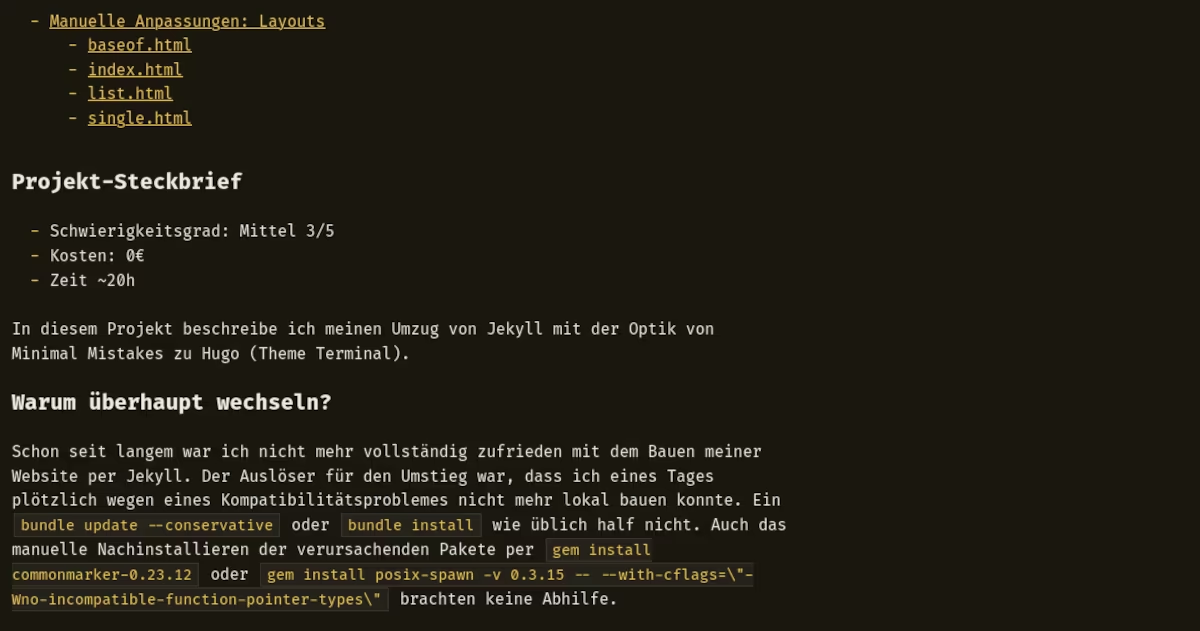
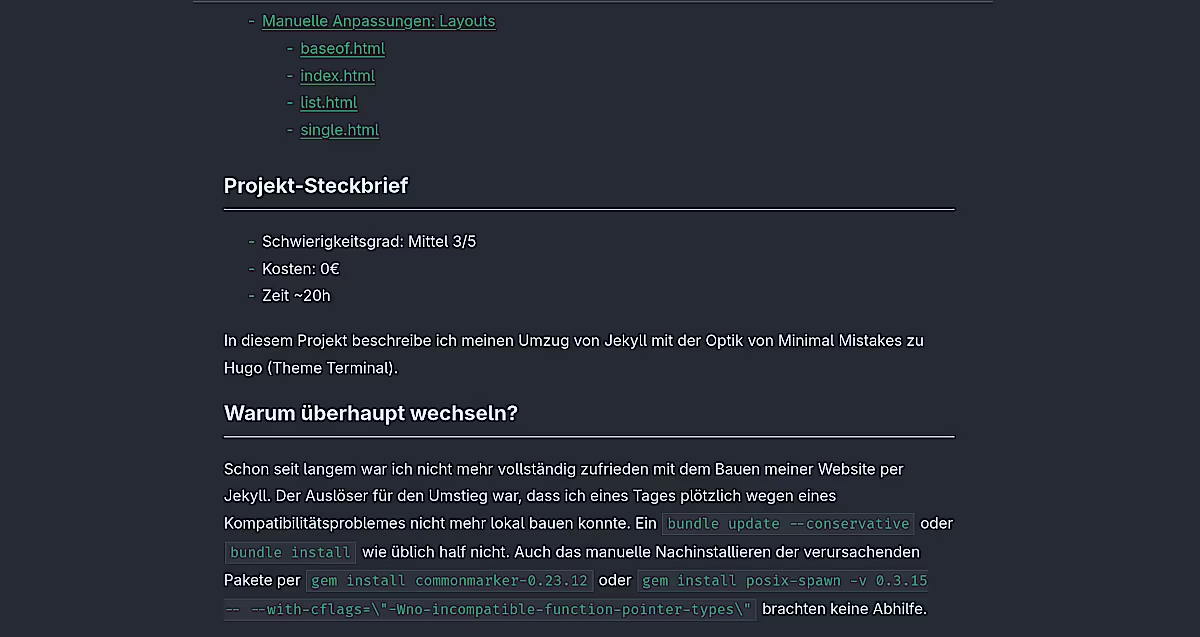
However, the layout isn’t vertically centered and is too narrow for my taste; the text is quite small, and I want “my” blog colors to be different as well. Therefore, I am creating a .css file that overrides some properties of the base theme. It must be located in the /static folder and named after the theme.
/* /static/terminal.css */

:root{
  --background: #252a34;
  --background-highlight: #475064;
  --foreground: #d2eaef;
  --foreground-dimmed: #8b9ea2;
  --accent: #25a679;
  --accent-highlight: #79ae9c;
  --radius: 8px;
  --font-size: 1.35rem;
  --line-height: 1.8em;
}

/* Use system fonts, reduce transferred kB */
body{
  font-family: system-ui, -apple-system, "Segoe UI", Roboto, Arial, sans-serif !important;
}

/* make content wider */
body .container{
  max-width: 70rem;
  width: 90%;
}
And just like that, it looks almost like it used to.
Organizing the folder structure#
Unlike the version of Jekyll I was using, Hugo features built-in internationalization (i18n). This requires me to restructure my folders and explicitly sort content into /de and /en directories. Instead of sitting at a higher folder level, content is now stored directly within the content folder—under /_pages, /_announcements, and /_posts—which makes things much tidier.
Before#
.
├── _announcements
├── assets
│   ├── css
│   │   ├── fontawesome
│   │   ├── katex
│   │   ├── main.scss # <-- theme import, customization
│   │   └── webfonts
│   ├── js
│   │   ├── lunr
│   │   ├── _main.js
│   │   ├── main.min.js
│   │   ├── plugins
│   │   └── vendor
│   └── video
├── banner.js
├── CNAME
├── _config.yml
├── _data
│   ├── de
│   │   ├── l10n.yml
│   └── en
│       ├── l10n.yml
├── en
│   └── index.html
├── Gemfile
├── Gemfile.lock
├── _includes # <-- Layouts (HTML), partials, 3rd-party
├── index.html # <-- Landing page
├── _layouts # <-- Page layouts
├── _pages
│   ├── 404.md # <-- German version
│   ├── [...]
│   ├── en
│   │   ├── 404.md # <-- English version
│   │   ├── [...]
├── _posts/
│   └── en
├── _projects/
├── _sass
│   ├── minimal-mistakes # <-- Styles (SCSS) for layouts and partials
│   ├── minimal-mistakes.scss
│   └── _video.scss
├── _site/ # <-- Build artifacts
├── staticman.yml
After#
Hugo’s documentation provides a good overview of the folder structure. The root folders content, layouts, and static are the most important for day-to-day work with articles and the website’s appearance.
.
├── archetypes
├── assets
├── content
│   ├── de
│   │   ├── about.md
│   │   ├── announcements/
│   │   ├── posts/
│   │   └── projects/
│   └── en
│       ├── about.md
│       ├── [...]
├── data
├── hugo.yml
├── layouts
│   ├── _default
│   │   ├── baseof.html # <-- defines header, add-ons, content, footer structure
│   │   ├── index.html # <-- landing page
│   │   ├── list.html  # <-- grid view
│   │   └── single.html # <-- post view
│   ├── _markup
│   │   └── render-link.html # <-- link highlighting and function (referrer, tabs)
│   ├── _partials
│   │   ├── cover.html # <-- cover (thumbnail) image rendering
│   │   └── math.html # <-- math rendering (katex)
│   └── _shortcodes
│       ├── audio.html
│       ├── image.html
│       └── [...]
├── resources
│   └── _gen
│       └── assets/
├── static
│   ├── assets
│   │   ├── audio/
│   │   ├── css/ # <-- contains overrides for custom layouts
│   │   ├── docs/
│   │   ├── images/
│   │   ├── js/ # <-- math (katex) JS lives here
│   │   └── video/
│   └── terminal.css # <-- Central theme override (colors, formatting, styling)
└── themes
    └── terminal # <-- GIT submodule: Vanilla "Terminal" theme
With both solutions, layouts are defined in HTML and styles/formatting in CSS. However, since I had to use more plugins with Jekyll, the setup is more extensive.
Manual Adjustments: Shortcodes#
Hugo’s shortcodes allow you to define non-text content (media, links, formatting, styles) that is then rendered according to specific rules. To do this, you create an HTML file that defines the wrapper and includes the relevant CSS classes. You also add the desired formatting to the theme’s overriding CSS file.
Since I am by no means an expert, I simply experiment until I am happy with the layout and no longer see any artifacts or overlapping elements.
.
├── layouts
│   └── _shortcodes
│       └── my-shortcode.html # <-- Custom shortcode file
├── static
│   └── terminal.css # <-- Central theme override (colors, formatting, styling)
Syntax: Hugo and Jekyll#
In Hugo, shortcodes are represented in the Markdown file using the following syntax:
{{< shortcode-html-filename options >}}
{{< image src="/path/to/image.avif" alt="Image: alt text" position="right" >}}
By comparison, shortcode-like decorators in Jekyll using Liquid, the templating language employed by Jekyll look like this:
### Liquid in interpreter code
{% Liquid bracket syntax %}
### Liquid "shortcode" pendant
{% include gallery id="gallery" caption="Eindrücke von **MobFobAmp**. Zum Vergrößern anklicken." %}
### Liquid decorator for layouting
{:.list-inline}
image#
Example of image display. A centered image follows on the next line.
The standard Markdown image syntax [Alt Text](/path/to/image) renders as a centered image without text wrapping by default in Hugo. However, for a pleasing layout, I need a few variations that require some additional CSS and HTML code.
- Centered image, no text wrapping
- Left-aligned image, text wrapping on the right
- Right-aligned image, text wrapping on the left
First, Hugo retrieves the file path and alt text. Then, it reads the desired formatting defined via the position variable from the Markdown file. Finally, it applies the image-wrapper class from the CSS file. To ensure better readability, the image alignment applies only to the desktop version of the site (>684px).
The theme customizations required to display images correctly are quite extensive. I also developed a gallery feature for posts containing a large number of images. Consequently, I wrote a separate article covering image formatting and alignment.
audio#
I use standard browser-native features to display the audio player.
{{- /* /layouts/_shortcodes/audio.html */ -}}

{{ $src := .Get "src" }}
{{ $caption := .Get "caption" | default "" }}

<div class="media-wrapper">
    <div class="media-container">
        <audio controls>
            <source src="{{ $src }}" type="audio/mp3">
            Your browser does not support the audio element.
        </audio>
        {{ with $caption }}
        <div class="media-title">{{ . }}</div>
        {{ end }}
    </div>
</div>
In css, I use a wrapper and a media container to display titles within the player frame and to simplify formatting. Here, too, I have implemented custom behavior for a responsive layout on mobile devices or when the browser window is resized.
video#
The CSS is identical to that of the audio element; there are only minor differences in the HTML. The container I use supports both “embed links” from sites like PeerTube and local source files via the src= attribute.
{{- /* /layouts/_shortcodes/video.html */ -}}

{{- $src := .Get "src" -}}
{{- $title := .Get "title" | default "" -}}
{{- $caption := .Get "caption" | default "" -}}

<div class="media-wrapper">
  <div class="media-container">
    {{- if hasPrefix $src "http" -}}
      <iframe src="{{ $src }}" frameborder="0" allowfullscreen></iframe>
    {{- else -}}
      <video controls>
        <source src="{{ $src }}" type="video/mp4">
        Your browser does not support the video tag.
      </video>
    {{- end -}}

    {{- if or $title $caption -}}
    <div class="media-title">
      {{- if $title -}}{{ $title }}{{- else -}}{{ $caption }}{{- end -}}
    </div>
    {{- end -}}
  </div>
</div>
Updates#
My content ages, too. Sometimes I switch technologies or providers, and sometimes third parties move away from solutions I’ve described implementing here on the blog. That’s why I introduced update-shortcodes.
Links#
I want the following behavior for links on my blog:
- internal links should open in the same tab and redirect the user.
- internal links should point to pages in the same language, rather than leading to the default language or back to the homepage.
- external links should be marked with an icon:
↗ - external links should open in a new tab:
target="_blank" - external links should neither access the original content nor be able to see the referrer:
rel="noopener noreferrer"
To achieve this, I create the file render-link.html in /layouts/_markup.
I present the code and the background details in a separate post: Hugo Multi-language: Internal Permalinks
The CSS override looks like this:
/* /static/terminal.css */

.external-link .external-link-icon{
display: inline-block;
font-size: var(--font-size);
vertical-align: middle;
transform: translateY(-0.1em);
}
Manual Customizations: Partials#
You can think of partials as the layout building blocks for a Hugo website. They are stored in /layouts/_partials and override the defaults of the theme being used. Since the original file is no longer loaded at all, the recommended approach is to copy the original file into the folder and then customize it manually.
index#
The blog’s homepage is entirely custom-written; it is not in Markdown format but in HTML. It displays its content differently than all other blog pages, so it wasn’t worth the effort for me to program specific templates. In the corresponding /layouts/_partials/index.html file, I load the necessary CSS files and define the page structure. The following table provides an overview of my changes.
| File | Purpose | Customization |
|---|---|---|
| cover | thumbnail / cover image for overview pages, lists, and grids | Add custom cover image decorator, alt text |
| head | Defines Favicon, search console, page parameters, feeds etc. | Custom favicon path |
| header | Page header containing menu, logo, navigation etc. | Add logo and subtitle to menu, lang selector |
| logo | Custom page logo, title, subtitle | Full |
| math | Displays math content with Latex/Katex | None, implement math support |
Math#
My blog is designed to support mathematical notation. I use KaTeX for this.
{{- /* /layouts/_partials/math.html */ -}}

<link rel="stylesheet" href="/assets/css/katex.min.css">
<script defer src="/assets/js/katex.min.js"></script>
<script defer src="/assets/js/contrib/auto-render.min.js" onload="renderMathInElement(document.body);"></script>

<script>
  document.addEventListener("DOMContentLoaded", function() {
    renderMathInElement(document.body, {
      delimiters: [
        {left: '\\[', right: '\\]', display: true},   // block
        {left: '$$', right: '$$', display: true},     // block
        {left: '\\(', right: '\\)', display: false},  // inline
      ],
      throwOnError : false
    });
  });
</script>
cover image#
I use the term cover to refer to a blog post’s title image. It is displayed on overview pages, in article and tag lists, etc., and is intended to complement the blog post’s content. My RSS feed should also use these images to provide an overview of various articles on my readers’ devices.
It is highly compressed and requires minimal bandwidth, resulting in a low resolution (440x220 or 640x352). To ensure a consistent look, the images are also always monochrome.
I use the following Markdown syntax to embed the cover image:
---
cover_alt: 'Image: Hugo console build output. It shows a full build time below 2sec. (~90% reduction over build time with Jekyll)'
cover: /assets/images/migrating-hugo-to-jekyll/hugo-jekyll-build-compare-cover.avif
---
Next, I create the file cover.html in the layouts/_partials directory and add the following code:
{{- /* /layouts/_partials/cover.html */ -}}

{{- /* Handles cover-image generation */ -}}

{{- $cover := false -}}
{{- $autoCover := default $.Site.Params.autoCover false }}

{{- if index .Params "cover" -}}
  {{- if .Resources.GetMatch .Params.Cover }}
    {{- $cover = (.Resources.GetMatch .Params.Cover).RelPermalink -}}
  {{- else -}}
    {{- $cover = absURL .Params.Cover -}}
  {{- end -}}
{{- else if $.Site.Params.AutoCover -}}
  {{- if (not .Params.Cover) -}}
    {{- if .Resources.GetMatch "cover.*" -}}
      {{- $cover = (.Resources.GetMatch "cover.*").RelPermalink -}}
    {{- end -}}
  {{- end -}}
{{- end -}}

{{if $cover -}}
  <!-- Cover image found -->
  <img src="{{ $cover }}"
    class="post-cover"
    alt="{{ .Params.cover_alt | plainify | default (.Description| plainify) }}"
    title="{{ .Params.CoverCredit |plainify|default (.Title | plainify) }}" />
{{- end }}
The code searches for and extracts the path to the cover image. If a valid path is found, the image is displayed as post-cover with the corresponding CSS.
I insert the cover image into the XML template as the first element within the <description> tag; the actual article follows only after that. Most feed readers then use this image as the cover for their overview lists.
Manual Adjustments: Layouts#
To ensure my Hugo site continues to feel very similar to my previous Jekyll site, I need to make a few changes to the layouts. I have described them below.
baseof.html#
This is where the base content is defined. Definitions for the header and footer are imported, and stylesheets are linked. The vast majority of the changes described above are imported here.
{{- /* /layouts/baseof.html */ -}}

<!DOCTYPE html>
<html lang="{{ $.Site.Language }}">
<head>
  {{ if .Param "math" }}
    {{ partialCached "math.html" . }}
  {{ end }}
  {{ block "title" . }}
    <title>{{ if .IsHome }}{{ $.Site.Title }}{{ else }}{{ .Title }} :: {{ $.Site.Title }}{{ end }}</title>
  {{ end }}
  {{ partial "head.html" . }}
  <link rel="stylesheet" href="{{ "/assets/css/gallery.css" | relURL }}">
  <link rel="stylesheet" href="{{ "/assets/css/media.css" | relURL }}">
</head>
<body>
{{ $container := cond ($.Site.Params.FullWidthTheme | default false) "container full" (cond ($.Site.Params.CenterTheme | default false) "container center" "container") }}

<div class="{{- $container -}}{{- cond ($.Site.Params.oneHeadingSize | default false) " headings--one-size" "" }}">

  {{ partial "header.html" . }}

  <div class="content">
    {{ block "main" . }}
    {{ end }}
  </div>

  {{ block "footer" . }}
    {{ partial "footer.html" . }}
  {{ end }}
</div>

</body>
</html>
list.html#
I need a list view for overview pages such as Articles, Tags, and Projects. I want to display four items per row. Each item gets its own “card” featuring a cover image, title, short description, and, if available, additional details like reading time. Hugo’s paginator crawls the relevant folder and compiles the content, while my list.css stylesheet handles the formatting and display.
{{- /* /layouts/_default/list.html */ -}}

{{ define "main" }}
  <link rel="stylesheet" href="{{ "/assets/css/list.css" | relURL }}">
  {{ with .Content }}
    <div class="index-content">
      {{ . }}
    </div>
  {{ end }}

  <div class="posts posts-grid">
    {{ range .Paginator.Pages }}
      <article class="post on-list">
        <a href="{{ .Permalink }}" class="post-card" aria-label="{{ .Title }}">
          {{ partial "cover.html" . }}

          <div class="post-card-body">
            <h4 class="post-title">
              {{ .Title | markdownify }}
            </h4>

            <div class="post-excerpt">
                {{ if .Description }}
                <p>{{ .Description }}</p>
                {{ end }}
            </div>

            {{- if and (.Param "readingTime") (eq (.Param "readingTime") true) -}}
              <div class="post-reading-time">
                {{ .ReadingTime }} {{ $.Site.Params.minuteReadingTime | default "min read" }}
              </div>
            {{- end -}}
          </div>
        </a>
      </article>
    {{ end }}

    {{ partial "pagination.html" . }}
  </div>
{{ end }}
single.html#
My single.html is almost identical to the default implementation found in terminal. I only added the option to include a “banner-image” associated with the title and imported the _partial/cover.html snippet to load a cover image.
<article class="post">
{{ with .Params.banner }}
<img
src="{{ . }}"
class="post-banner"
alt="{{ $.Params.banner_alt | plainify | default ' ' }}"
/>
{{ end }}
Given all these changes, one might consider forking the theme to create a custom version… 🤔
Quality Control#
Another new addition to my website is a check for broken links. The site has grown up and now contains so many internal and external links that manual checking is no longer practical. The article on htmltest configuration for Hugo documents the tool I use and how I account for Hugo-specific quirks during the process.
Publishing#
I also need an automated pipeline for Hugo. Whenever I push a change to the main branch, the website should be automatically rebuilt and deployed. I describe exactly how this works in the article Building and Deploying a Hugo Website with GitHub Actions and Docker.
Performance#
What has all this effort achieved? For users, the appearance and navigation remain very similar to the Jekyll-based site. However, the improvements are evident in faster load times, reduced data transfer, and better overall clarity. I provide a detailed comparison in the article Jekyll vs. Hugo Benchmarking.