
Use Password manager with hardware security keys
Contents
The Password Manager#
The web is full of various password management solutions. This is understandable, given that we have an ever-increasing number of accounts, and no one wants to memorize passwords in the hundreds. So, let’s get straight to the point:
From the vast array of options, I evaluated three password managers based on my criteria (secure, user-friendly, open-source, self-managed) to make a final choice:
- Firefox password manager (Online/Offline)
- Vaultwarden (Online)
- KeePassXC/KeePassDX (Offline)
Not the Firefox Password Manager#
I ruled out Firefox because I want to use my hardware security key to unlock it rather than memorizing a long master password. On the plus side, however, it offers great ease of use, automatic form filling, and synchronization capabilities, albeit via third-party infrastructure.
Not Vaultwarden#
I had been focusing on Vaultwarden for a long time. Running it on a local network requires meeting numerous prerequisites and setting up supporting software. Specifically things like HTTPS on the LAN and ACME challenges. Consequently, you need a dedicated small computer on your LAN, and ideally, a virtual private server to handle HTTPS traffic termination. Vaultwarden even supports incredibly convenient passkey-based login and can synchronize the password database across all devices on the network.
Ultimately, however, I avoided the complex setup, its additional dependencies, and software packages, all of which I would have had to maintain.
KeePassXC#
I experimented with various versions of KeePass and eventually settled on KeePassXC. The overall package simply feels more polished and modern; I can use the software across different operating systems, and the extensions needed for hardware security keys (HSKs) are included right out of the box.
Setting up KeePassXC with an HSK#
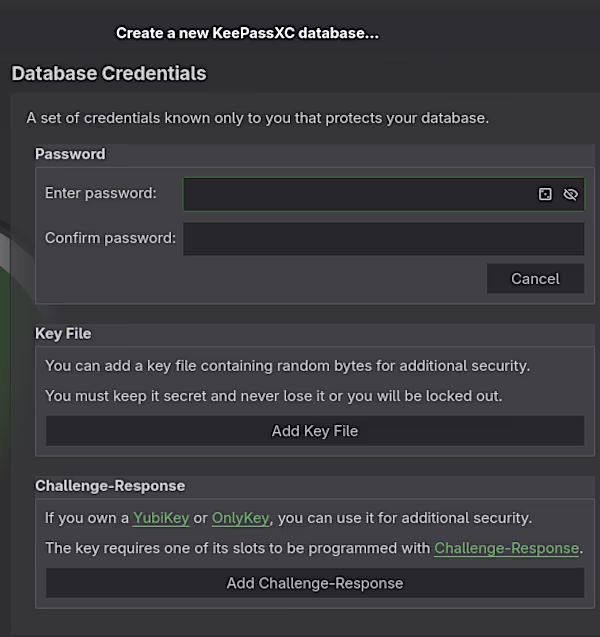
Typically, you generate the secret key on the hardware security key and then copy it into the KeePassXC input field. But let’s take it step by step, as the process depends slightly on the specific HSK being used.
YubiKey#
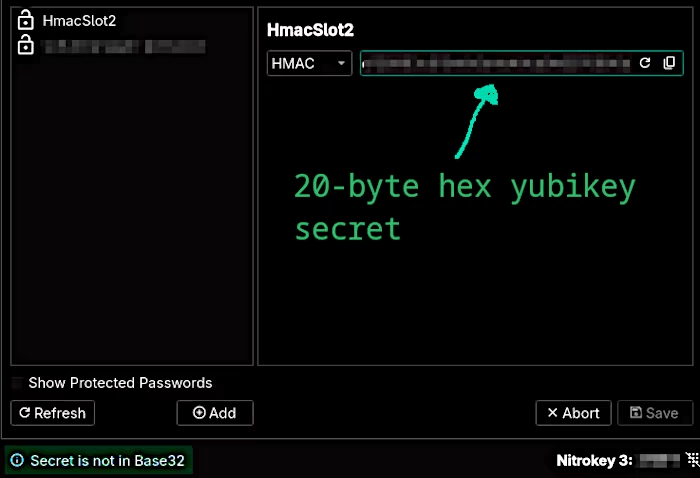
Yubico has prepared a guide specifically for use with KeePass. A YubiKey has two configurable slots that support various cryptographic functions. From the function selection, choose Challenge-response: program a challenge-response credential. The YubiKey then generates a 20-byte HEX code, which can subsequently be copied into KeePassXC.
It is important to note that the displayed code cannot be extracted later. Therefore, if the database is to have a secondary key (which is recommended), the code must be written down and then also stored in the secondary key.
For the YubiKey, I recommend leaving the requires touch option unchecked. Otherwise, you have to touch the YubiKey every time you use a password. Even more annoying is that touching the key also becomes necessary when adding or modifying a password entry.
Nitrokey#
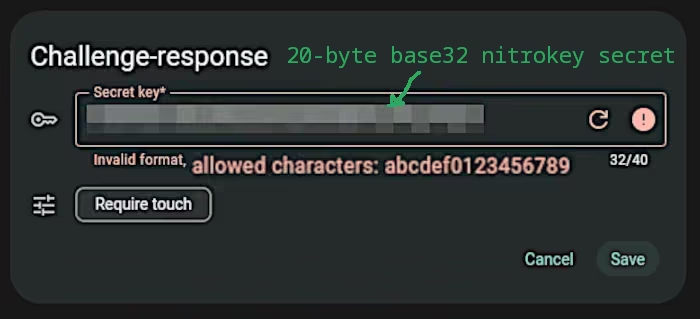
Nitrokey specifies that the secret be generated as a 20-byte base32 code. It can store exactly one HMAC secret.
Nitrokey also provides an online guide for storing the HMAC secret for use with KeePassXC. As with the YubiKey, this guide relies on using the GUI app.
YubiKey - Nitrokey Compatibility#
Ideally, I would store the key generated on the YubiKey onto the Nitrokey, or vice versa. That way, I would have a backup key and could access the KeePassXC database using either one.
But behold, the Nitrokey does not accept the YubiKey’s secret:
The same thing happens when I try to store a secret generated on the Nitrokey onto the YubiKey:
I needed a workaround for this. So, taking a pragmatic approach, I created a second password database. Both were intended to hold the same content but use different keys to unlock. I later learned that this wasn’t actually necessary. Nevertheless, here are the provisional solutions I came up with initially.
Dead End A: Cloning entries from the database#
I populate the first database with passwords, sorting them into groups. Then, I clone a group, open the second database, and drag and drop the clone over.
Drawbacks: I have to repeat this process for every group, as drag-and-drop functionality isn’t supported for the root group. Whenever I make a change in Database_yubikey, I also have to update Database_nitrokey.
This becomes tedious, especially while the database is still under construction.
Dead End B: Copying the entire database and updating the HMAC#
To do this, you store the HMAC secrets for both hardware security keys (HSKs) within the password manager. When the database changes, you create a copy of the database file, open it, and copy the secret belonging to the other HSK. Then, you navigate to Database > Database Security > Change Challenge-Response and enter that secret. The database now works with the other key.
Drawback: Requires manual updating of both databases. The challenge-response setup has to be reconfigured every time.
Solution: Converting the HMAC secret#
I wondered if I could use the command line instead of the app to store the HMAC secret for my Nitrokey. Command-line tools like nitropy usually offer more options than their GUI counterparts. Perhaps this would allow me to solve the compatibility issue. Here is the link to the nitropy installation guide.
While looking for suitable documentation, I came across this interesting post about challenge-response. It made me realize something that tech-savvy people, or at least those who are used to cryptography, or work close to hardware, have known for a long time:
Data with a size of
20 bytescan be represented as 40 characters inhexAND as 32 characters inbase32.
Consequently, an HMAC secret can be converted and stored on both the YubiKey and the Nitrokey. To do this, I use the small utility xxd to generate a base32 phrase for my Nitrokey from the YubiKey’s hex code.
# open a new terminal
# make sure the secrets are not saved to history (command for zsh)
history -p
# c0ffee = secret hex key
# xxd convert input to binary (-r), output as plain hexdump (-p)
# interpret as base32 string
echo -n 'c0ffee' | xxd -r -p | base32
YD764===
# close terminal
Alternatively, it also works the other way round:
# open a new terminal
# make sure the secrets are not saved to history (command for zsh)
history -p
# YD764=== = secret base32 key
echo -n 'YD764===' | base32 -d | xxd -p
c0ffee
# close terminal
KeePassXC: Keeping Passwords Neatly Organized#
If you avoid using “Log in with Google” options for third-party services, you can end up accumulating a large number of passwords over time. To make finding and using these passwords easier on both mobile and desktop, it makes sense to organize them into logical groups.
Password Families#
After some experimentation, the following naming scheme has proven effective for titles when I need to store multiple related passwords:
baseapp.attribute.specialization
For example, here is how the login details for my hardened Gitea setup would look:
gitea.login.schallbert
gitea.login.testuser
gitea.runner.registration
gitea.recoverykey
Password groups#
I consider the following groups of passwords to be sensible:
| Group | Description |
|---|---|
| Devices | Computer, phone, router, keys |
| Finance | Banks, credit cards, insurances, payment |
| Identity | Email, identity providers, single sign-in |
| Shopping | Online stores, streaming, subscriptions |
| Games | Platforms, launchers, servers |
| Social | Forums, Messengers, Social networks |
| Backup | Recovery keys, licenses, passphrases |
In doing so, I make sure not to create too many subgroups. Otherwise, it is easy to get confused, especially in the mobile view.
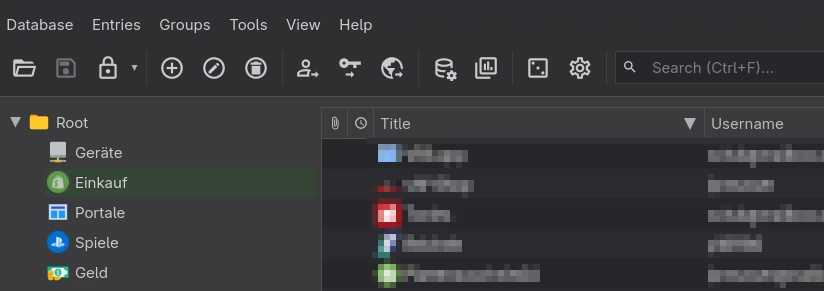
Icons 🔑#
KeePassXC offers the wonderful feature of downloading the target website’s favicon and using it as an icon. This makes navigating the password manager even easier.
However, the favicons are all bitmaps. If you prefer to use high-quality vector graphics, you can specify the path to an icon pack under “Choose Icon.” I downloaded the Aegis icons for this purpose and am very happy with them.