
SSH connection errors
Contents

SSH connection. Whether connecting to other computers, servers, or services like version control systems, the error messages and their corresponding solutions are usually the same. However, it is only worth reading further if standard help pages - such as GitHub’s SSH troubleshooting guide - have not provided the desired solution.
Problem: “No Route To Host”#
The console output shows (on a local network):
➜  blog git:(article) ✗ ssh 192.168.0.27
ssh: connect to host 192.168.0.27 port 22: No route to host
Or (on a remote network):
➜  blog git:(article) ✗ ssh 1.2.3.4
ssh: connect to host 1.2.3.4 port 22: Network is unreachable
The cause is very likely an incorrectly entered IP address or a failed DNS lookup. On a local network, a common reason is that the target device is powered off, preventing the router from reaching it. The issue can usually be resolved by correcting the destination address, powering on the target device, or updating the routing table.
Problem: Connection Refused#
Terminal output:
➜  blog git:(article) ✗ git push gitea
ssh: connect to host git.schallbert.de port 22: Connection refused
fatal: Could not read from remote repository.
In this case, a connection to the destination cannot be established at all; the process fails before authentication even begins. In my experience, such errors arise for three reasons:
- The host is not yet ready. For example, it might be booting up (the network card is active), but the SSH service has not started. The usual solution here is simply to wait.
- A firewall, rate limiter, or services like fail2ban reject the connection (
REJECT). This is often caused by too many failed login attempts or an overambitious bot detection mechanism. In rare cases, your IP address might also appear on a “deny-list” loaded by the target system. In this instance, too, the best course of action is to wait. - The service in question expects a port other than the standard SSH
Port 22. Consequently, the user, target address, and port do not match.
The port issue is easily resolved.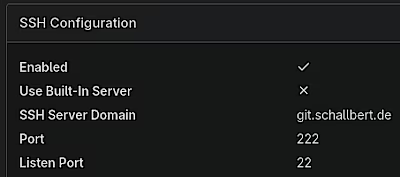
- Determine the Port on the host (Server Configuration / SSH). The image shows the settings for my Gitea instance. Alternatively, simply checking the service’s configuration file is usually sufficient.
- Specify the correct port number in the SSH configuration file at
~/.ssh/config. Example:
# /.ssh/config
 Host gitserver
  Hostname git.schallbert.de
  Port 222
  [...]
Problem: Too Many Authentication Failures#
Terminal output:
➜  blog git:(article) ✗ git pull
Received disconnect from <ipAddress> port <portId>: Too many authentication failures
So, we have a connection to the server 😁, but it won’t let us in 😨. At least it tells us why: it claims we’ve tried too many keys at its front door.
Checking the server login limit#
This error occurs when the server’s limit for login attempts is exceeded. For the sshd service, the default value is, for example, MaxAuthTries = 6. If you have saved many keys for multiple connections - or, like me, have recently started using Hardware Security Keys and set up backup keys (effectively doubling the key count) - this limit is quickly reached.
The tricky thing about this error is that it only appears with specific services “further down” in the agent’s keychain: after all, five keys are allowed to fail before the limit is hit. Furthermore, having the keys correctly configured in ~/.ssh/config doesn’t protect you; the agent always attempts to use all available keys unless explicitly told otherwise.
We can prevent this by using IdentitiesOnly yes. This explicitly instructs the agent to use only the identities (i.e., key files or username/password) specified for that particular host.
# /.ssh/config
Host gitserver
Hostname git.schallbert.de
Port 222
User <user>
PreferredAuthentications publickey
IdentityFile <path_to_private_key1>
Identityfile <path_to_private_key2>
IdentitiesOnly yes
Checking the Git config#
You can also encounter this error if the repository’s Git configuration (located at <reponame>/.git/config) does not match the server and repository details defined in your SSH configuration (~/.ssh/config). If you change the SSH configuration, all repository configurations maintained locally must also be updated.
Example:
# <reponame>/.git/config
# [...]
[remote "origin"]
	url = ssh://git@git.schallbert.de:222/schallbert/<reponame>.git
	fetch = +refs/heads/*:refs/remotes/origin/*
[branch "main"]
	remote = origin
	merge = refs/heads/main
	vscode-merge-base = origin/main
In this case, the gitserver configuration is not used at all; instead, the connection is established directly. Consequently, the agent does not receive the IdentitiesOnly yes flag and cycles through keys until the server rejects the connection. Solution:
[remote "origin"]
url = git@gitserver:schallbert/<reponame>.git
fetch = +refs/heads/*:refs/remotes/origin/*
Problem: Permission Denied (publickey,password)#
Console output:
➜  blog git:(article) ✗ ssh -T git@gitserver
git@git.schallbert.de: Permission denied (publickey,password).
Unfortunately, this problem can have many different causes. GitHub’s guide addresses a few of them, including:
- Using
sudo - Wrong server
- Not using the
gituser - Using the wrong key (client)
- Key not registered (server)
The output for an incorrect username looks like this:
➜  blog git:(article) ✗ ssh -T mit@gitserver
mit@git.schallbert.de: Permission denied (publickey).
Another cause can be a mismatch between the ~/.ssh/config configuration file and the remote address stored in the git client. If they do not match, any existing configuration will not be used at all.
You can verify this using git remote -v.
➜  blog git:(article) ✗ git remote -v
origin	ssh://git@git.schallbert.de:222/schallbert/blog.git (fetch)
origin	ssh://git@git.schallbert.de:222/schallbert/blog.git (push)
The correct approach, using the improved configuration file (with ports explicitly set and identity files defined and restricted to the specified ones), looks like this:
# Update link to server's git repository, use host alias from config file
➜  blog git:(article) ✗ git remote update origin git@gitserver:schallbert/blog.git
# Now check if the update was effective
➜  blog git:(article) ✗ git remote -v
origin	git@gitserver:schallbert/blog.git (fetch)
origin	git@gitserver:schallbert/blog.git (push)
Problem: Agent Refused Operation#
Console output:
➜  blog git:(local-setup) ✗ git push --set-upstream origin local-setup
sign_and_send_pubkey: signing failed for ED25519-SK <path-to-private-key> from agent: agent refused operation
I have only encountered this error since I started using hardware security keys for SSH. As I see it, there are two possible causes. Fortunately, both are easy to fix:
- The agent does not recognize the key. The
ssh-addcommand resolves this. Verify usingssh-add -l | grep "<your-key's-comment>" - The requested key is missing. This can happen with HSKs and HSMs if they are not plugged in, not positioned correctly on the NFC reader, or if the HSM is unavailable on the network. It can also occur if the
~/.ssh/configfile was edited manually and the key has since been renamed or deleted.